Found this article on the About.com site. Perfect for a project I'm working right now for MFO!
THE MAILTO COMMAND
by Jennifer Kyrnin
If you want people to send you email from your Web page, you can use the "mailto" tag. Then, when your readers click on the link, an email browser opens up to allow them to send you email.
Setting up a Mailto Link
To write an email link just create an anchor link like you would normally, but instead of "http://" write "mailto:" and then your email address. For example, to set up a link to email me, you would write

If you want to send to multiple people, separate the email addresses with a comma:

But there is so much more that you can do with the mailto links. Most current Web browsers and email clients support more than just the "To" line. You can specify the Subject, send carbon copies, and blind carbon copies.
Advanced Mailto Links
When you create an email link with extra features, you treat it similarly to a CGI script that uses a GET operation (attributes on the command line). Use a question mark after the final "To" email address to indicate you want more than just a "To" line. Then you specify what other elements you would like:
- cc - to send a carbon copy
- bcc - to send a blind carbon copy
- subject - for the subject line
You treat the elements as name=value pairs. The name is the element type listed above that you want to use, and the value is what you want to send. To send a letter to me and cc the Web Design Guide, you would type:
Web Help
To add multiple elements, separate the second and subsequent elements with an ampersand (&).

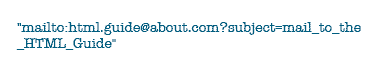
Finally, when adding a subject, keep this in mind, while you can use spaces, they may not come to your email address as spaces. Well, technically they are, but they are sent as URL encoded spaces, so while your browser would know they are spaces, they look like code to you. It's better to separate your words with underlines rather than spaces, as this make it easy for you to read without worrying about how the browsers will interpret it:
Putting Mailtos Together

results in testing mailto.



 Posts
Posts


